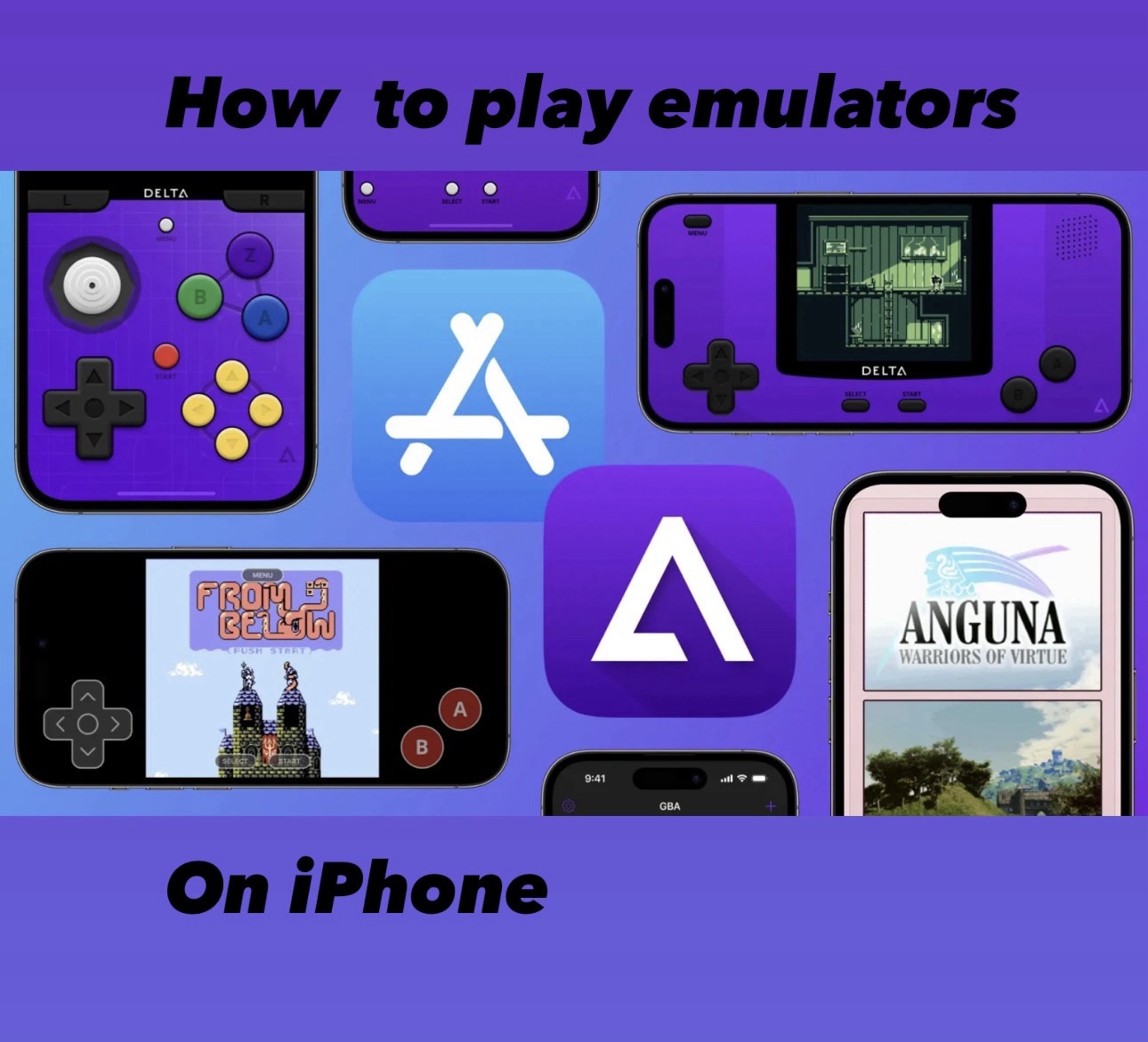
With all the news surrounding emulator app Delta sneaking emulators onto the App Store. You can read more about it over Game Emulators Might Finally Be Coming to the App Store. Although it’s already available on android, it’s still just as exciting to be able to do it on iPhone. It is our understanding that not everyone is familiar on how to do it so we created a simple guide on how to get started playing emulators on your iPhone or IOS Device
Let’s begin by downloading the app Delta over at https://apps.apple.com/us/app/delta-game-emulator/id1048524688

Once you have it installed, it will automatically open into a directory of blank games. Delta makes it a breeze installing games so we’re going to get some roms to load up! A great and easy way to find rom sites is a simple google search away. We recommend http://www.emulatorgames.net due to its reliability and wide variety of games for various systems.

We then go to our console of choice for this example we use GBA and SNES but the process is the same for the various supported consoles.

Then you want to tap save game and proceed to download after the wait time the site gives you.

A blue download sign should appear indicating your download has started, once complete go to your downloads and ensure it got saved to the FILES directory of your iPhone.


We’re almost done, it’s that easy! Now we finish the process over onto the Delta app itself. For this part we made a small screen capture.
You want to hit the + symbol on the top right and hit files to view your downloaded roms. You pick your downloaded rom it should show up as a zip file but the app recognizes it nonetheless… It should now be in your library of games in the Delta app. You’re done! It’s that simple! Now you can add games as soon as nostalgia hits you. Comment down below what games you have been playing on your emulators!

Leave a Reply